.png)
If you are consistently exporting CSVs from Ads Manager, renaming files, and copying and pasting data, you are likely losing hours every week. Every minute you spend on these tedious tasks can be spent in other areas that will help promote your business or generate more sales.
In this article, you will learn how to automate data extraction from your Ads Manager to Google Sheets, saving you hours of repetitive tasks in under 60 seconds, allowing you to focus on what truly matters.
Why Manual Reporting Is Killing Your Productivity
While reporting is necessary to know how to optimize your ads and also boost sales, doing it manually has some drawbacks
- Repetitive Exports: To get your recent ads data, you have to go to Facebook Ads Manager to download the CSV file all the time. This is repetitive and can lead to having many files connected to several dashboards.
- High Chance of Human Error: Because of the repetitive nature of having to download recent ad insights from the Ads Manager, errors might occur, such as using an older file, thinking it’s the recent one, or connecting wrong files to your dashboards.
- Slow Decision Making: After downloading your data from the Ads Manager, you need a data analyst to analyze the data, or you analyze it yourself, which is only possible if you have the technical know-how. You will also have a lot of information and dashboards tracking various metrics, which can seem overwhelming, not allowing you to make focused decisions that can boost your business growth.
Manual reporting doesn’t scale for agencies, media buyers, or even growing businesses due to the amount of ad insights they will have to work with. As a business, you need something organized and automated, a single file where you can look at every insight and also analyze without wasting time.
The Simple Fix: Connect Facebook Ads → Google Sheets Automatically
The simple fix is to connect your Facebook Ads to Google Sheets and fetch your data automatically, while also setting automated data syncs for recent data.
This allows you to organize various ad insights filters into sheets in a single Google Sheets file, which you can automatically sync to BI tools like Looker Studio or Power BI.
You can also ask the AI data analyst for information from your Facebook Ads data, saving you the time of looking through pages of dashboards.
Step-by-Step: Automate Your Reporting in Under 60 Seconds
Step 1: Install the LearnFacebookAdsInsights Google Sheets Extension
Open your Google Sheets, create an empty file, and name it My Ads Insights.
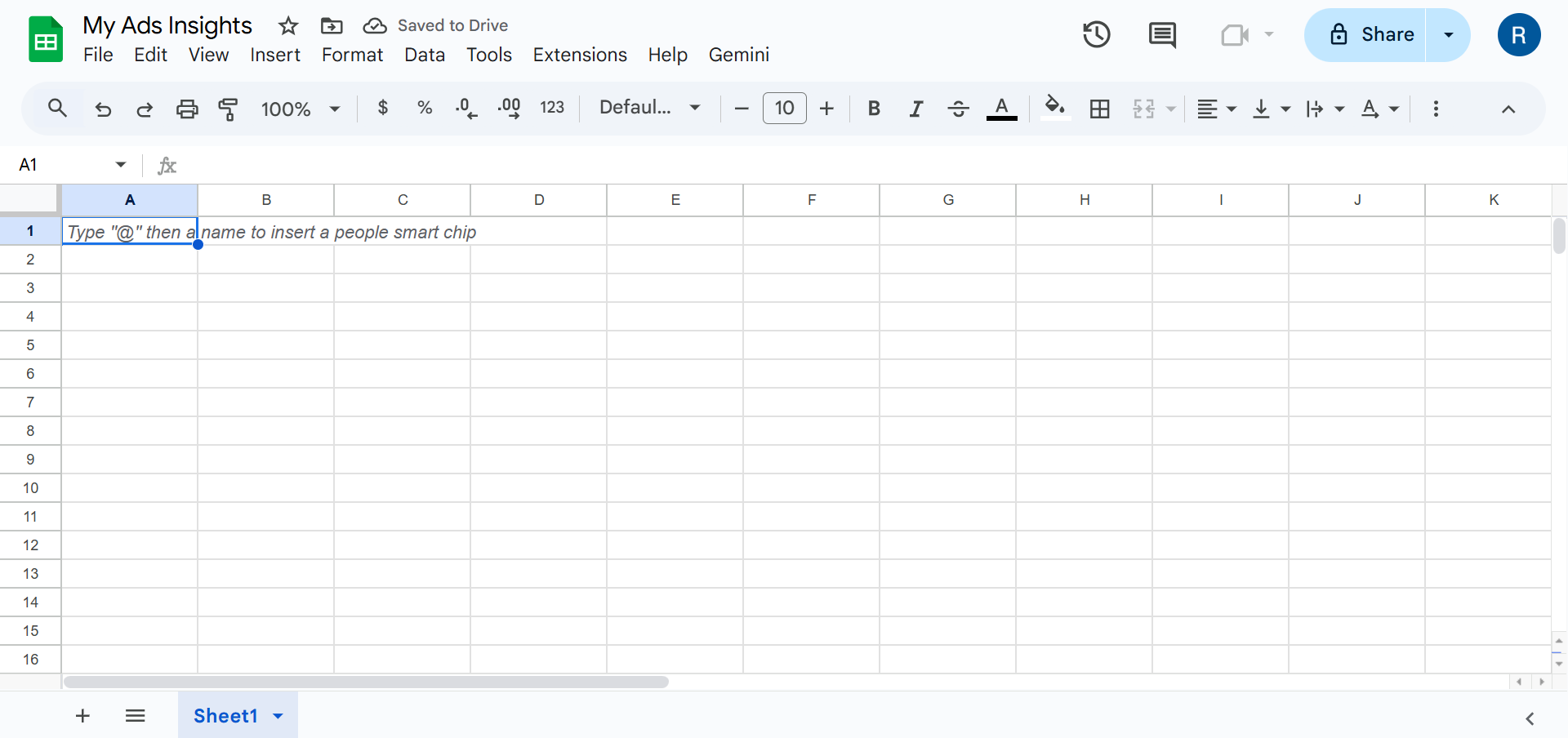
Click on the Extensions tab; under the Add-ons dropdown, then click on Get add-ons to open the Google Workspace Marketplace.

Search for the term “LearnFacebookAdsInsights” in the search bar of the Google Workspace Marketplace.
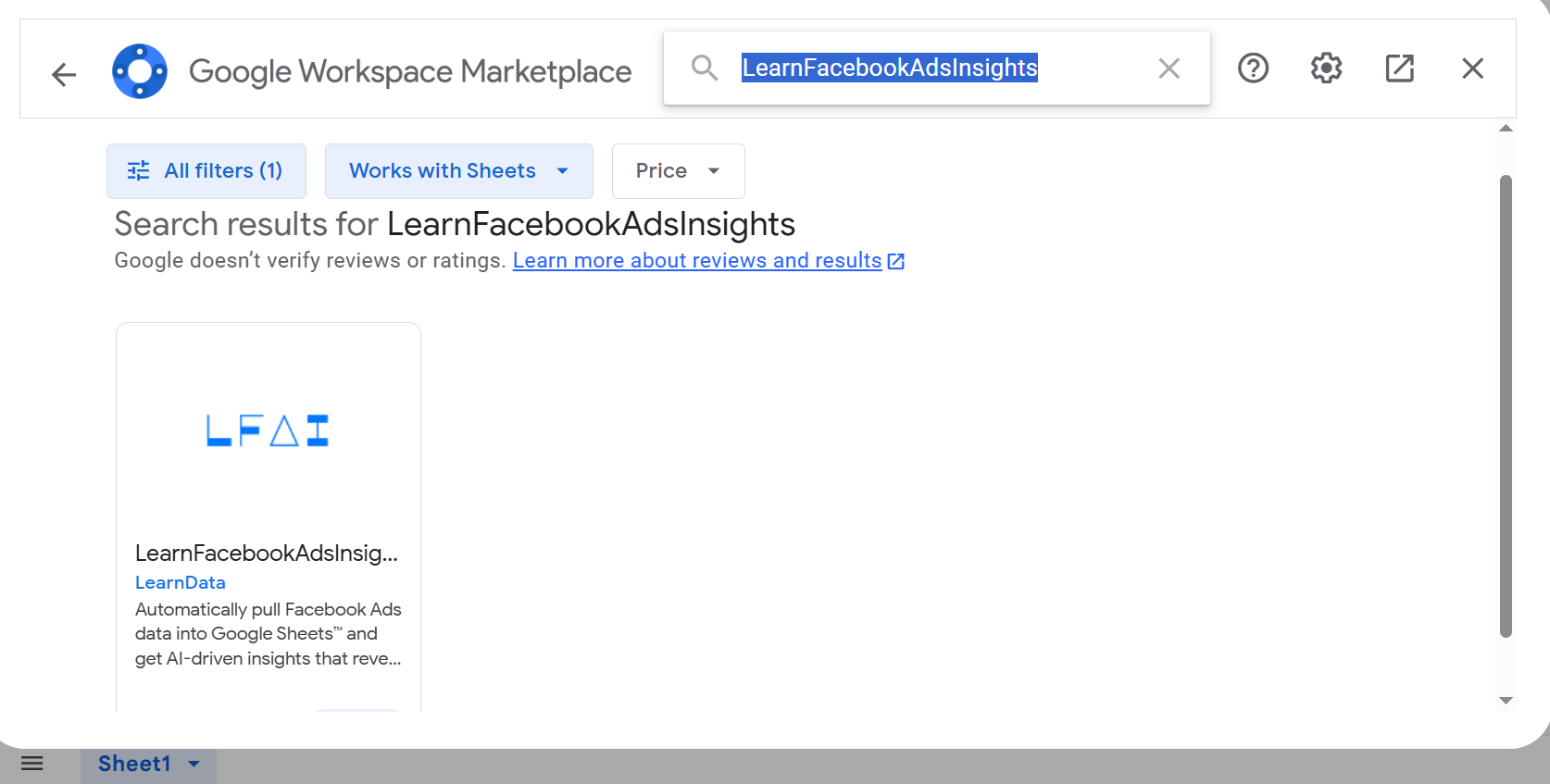
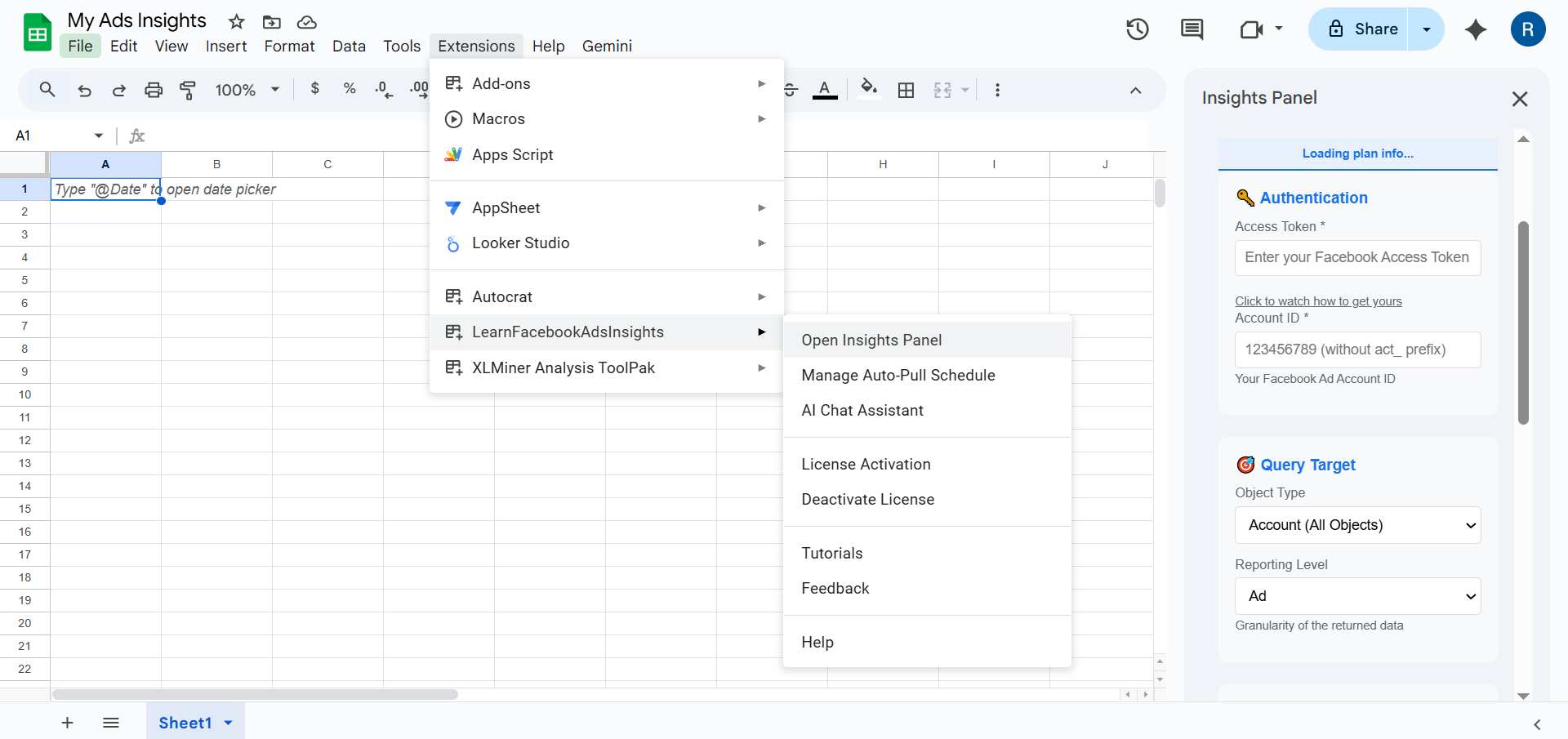
Click on it and install. You should see the following menu under the Extensions tab of the LearnFacebookAdsInsights dropdown.

To use LearnFacebookAdsInsights, you need to purchase a license key, which is free, then input the key in the License Activation menu to activate.

Step 2: Connect Your Facebook Ad Account
Go to the menu of the LearnFacebookAdsInsights extension and click on Open Insights Panel, this is where you will give your credentials to connect your Facebook Ads account and give permission for the extension to pull your data.
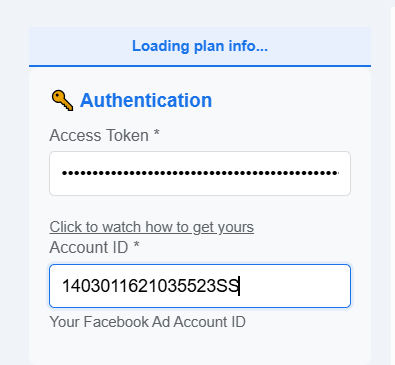
You need just two credentials: your access token, which you can get here, and your ads account ID.
Step 3: Select What Data You Want Pulled
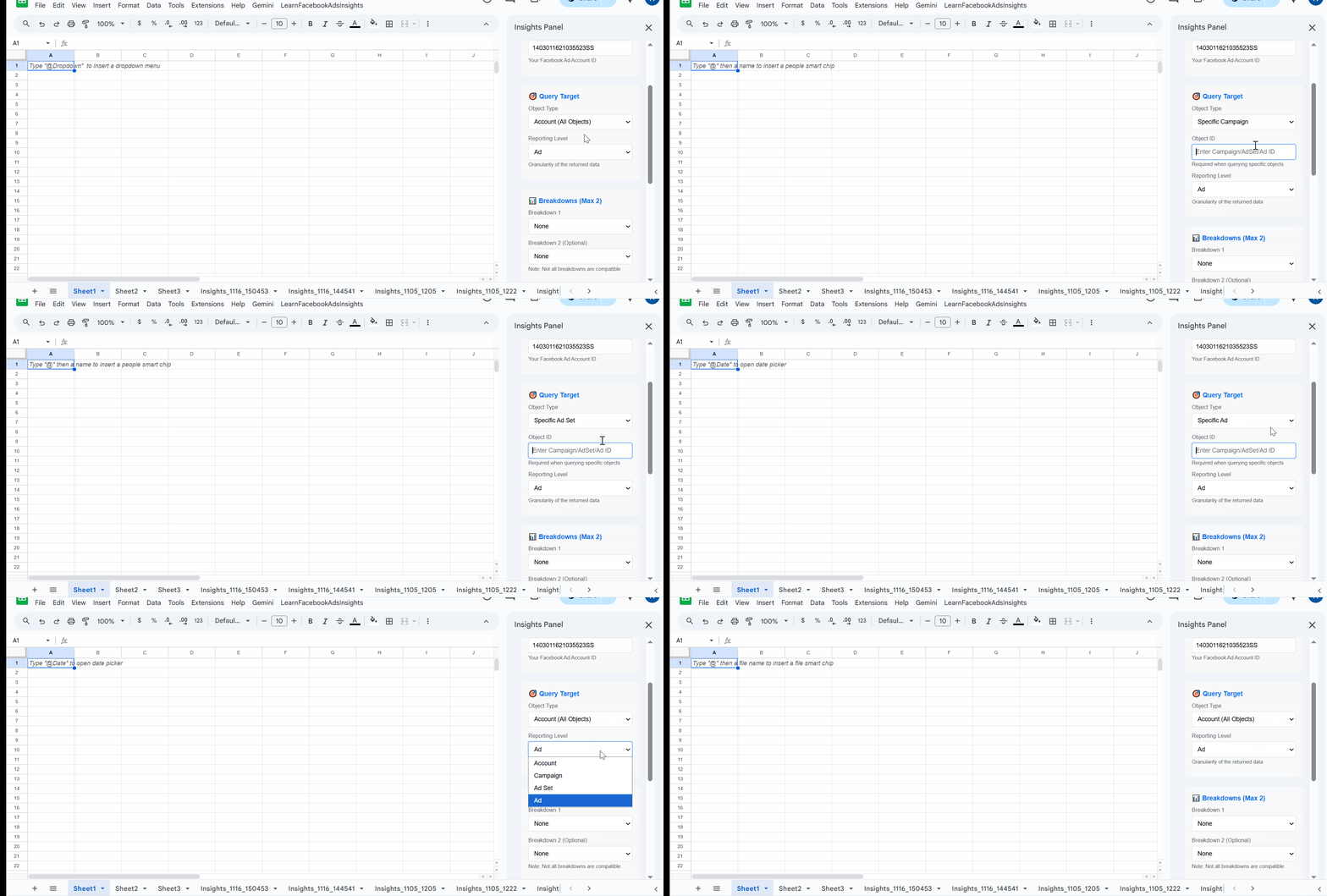
Next, select your query target from the Object Type dropdown. This allows you to control how you want the data returned: to include all accounts or a particular campaign, ad set, or ad. All options except Account (All Objects) will display an empty box that will allow you to input the campaign, ad set, or ad id.
The reporting level is the lowest level you want to report in the sheet, for example, a reporting level of ad set will not show ad data, but ad set data; likewise, a reporting level of campaign will show campaign level data and not ad set or ad data.
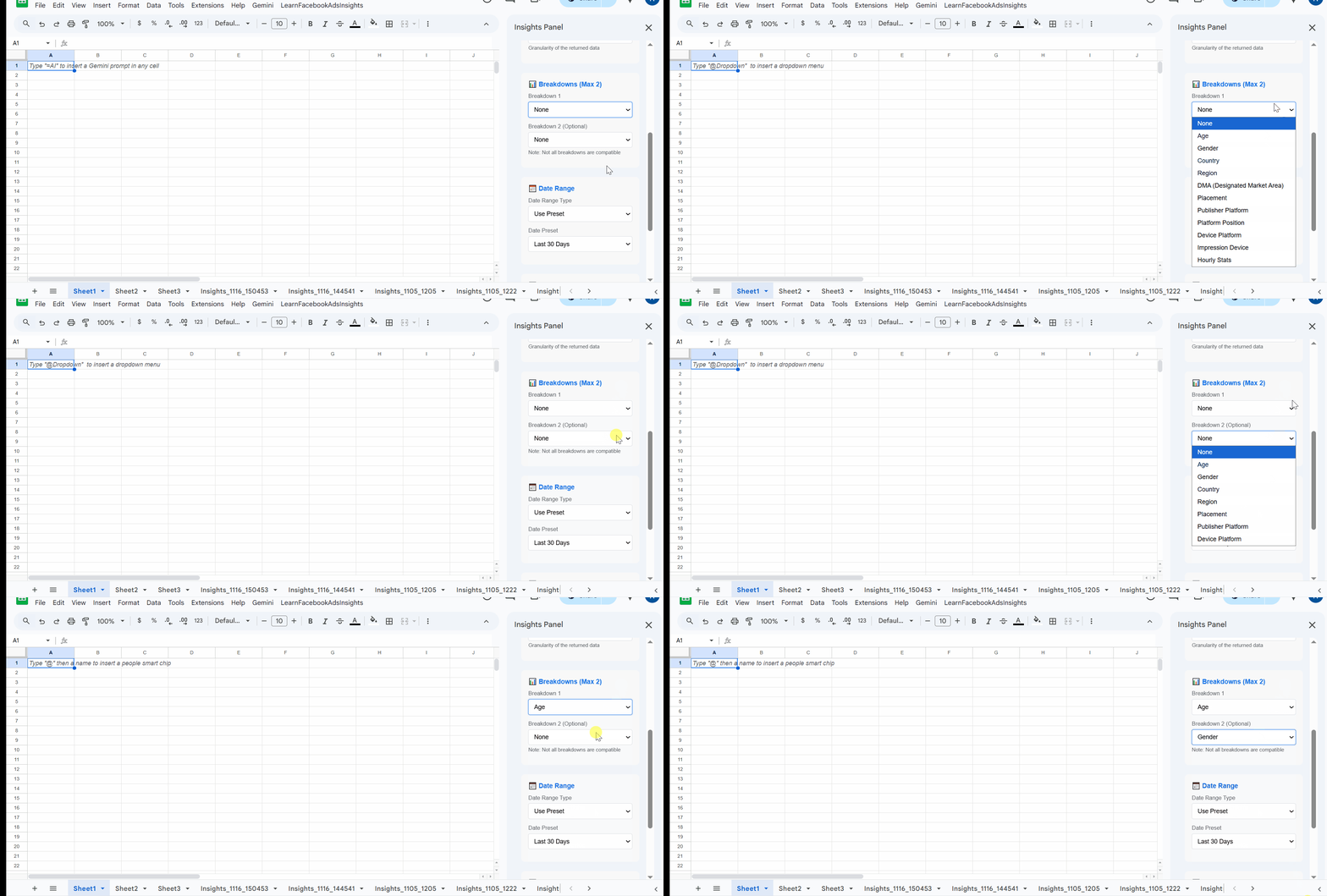
Then select a breakdown; you can only select a maximum of two breakdowns per report.
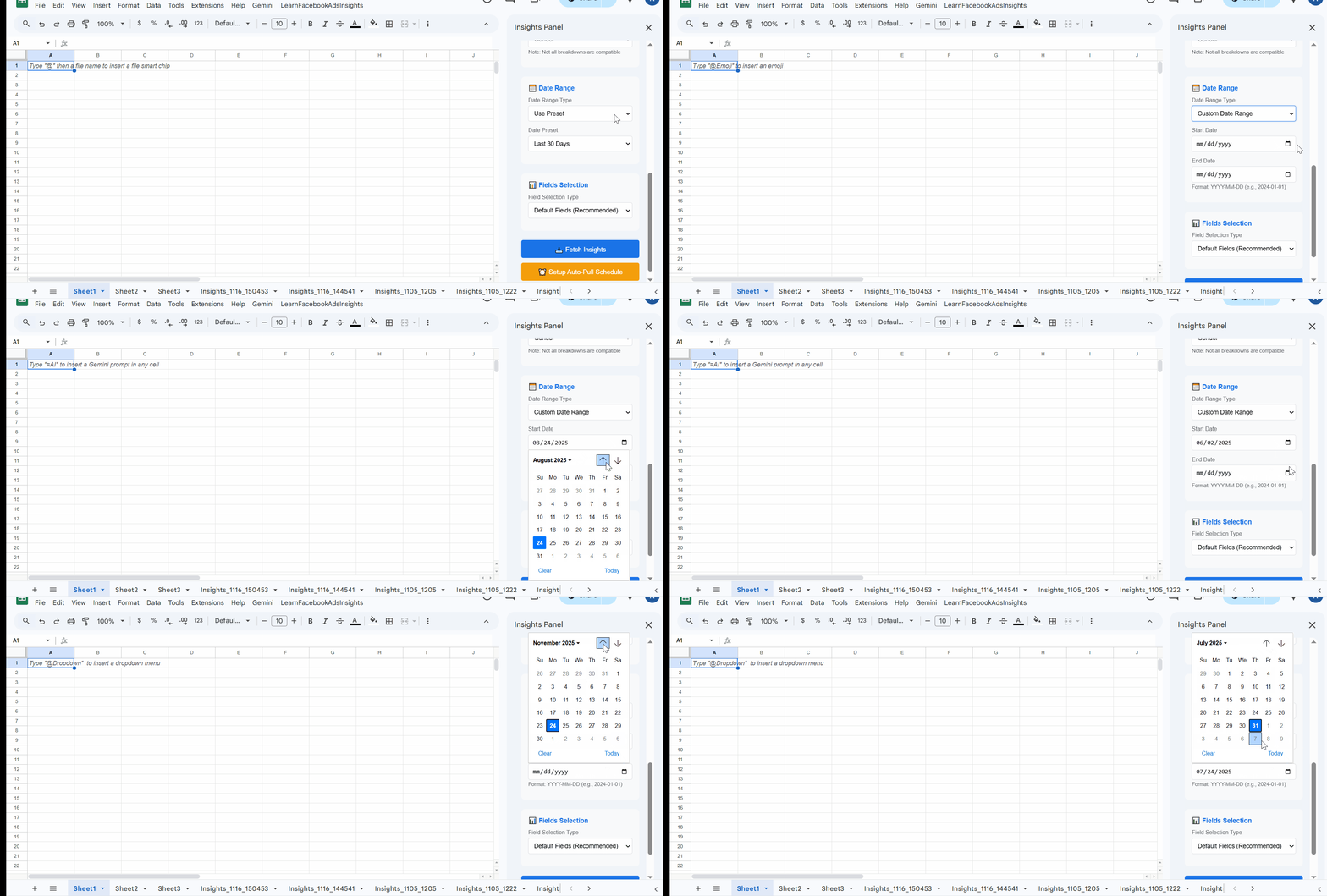
Then you select the date range you are interested in seeing.
Finally, click the fields dropdown to either use the default fields or select custom fields.
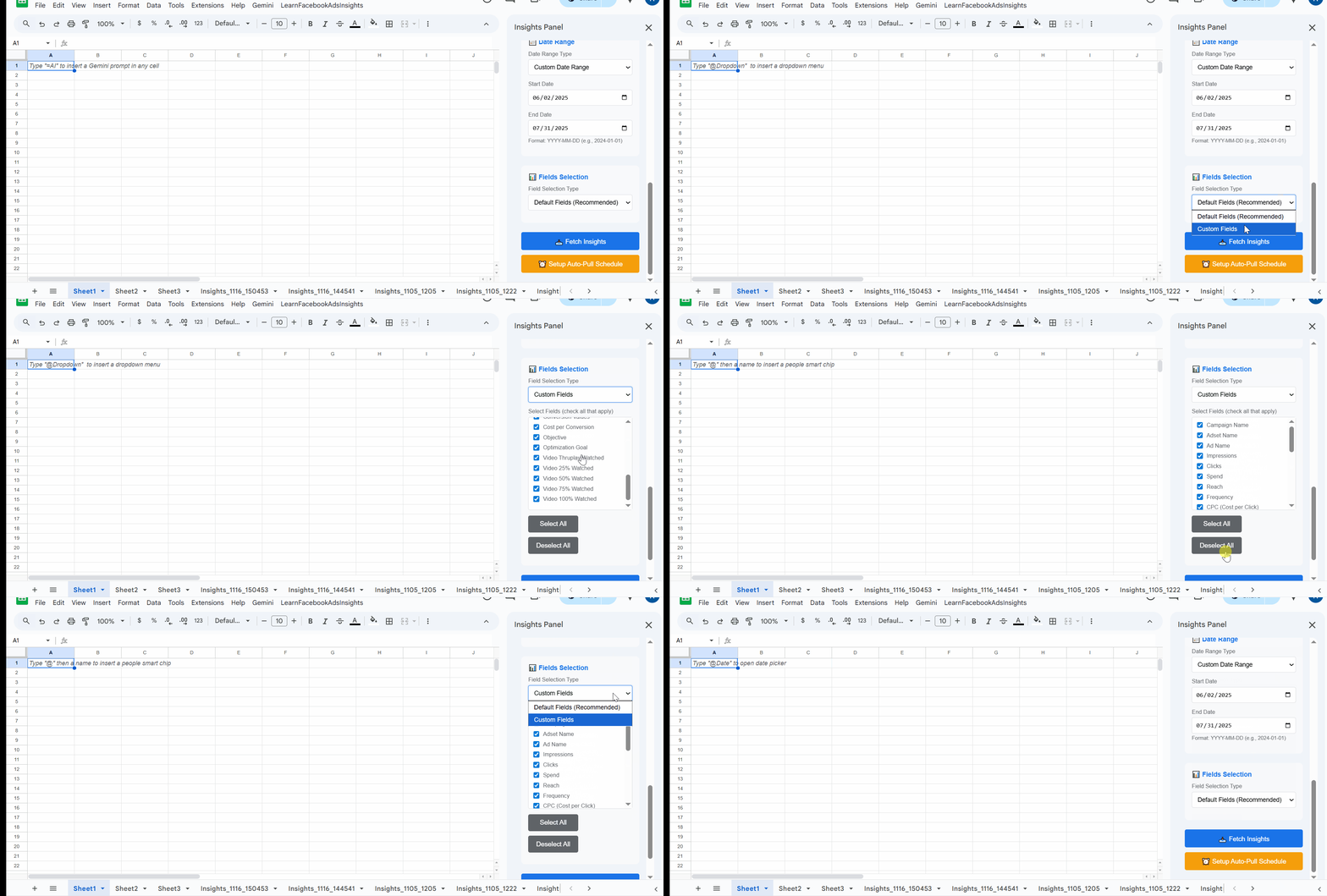
Step 4: Run the First Sync
Click the Fetch Insights button to get the report; the fetched data will appear on a new sheet.

Each data fetch creates a new sheet with information based on the filters provided.
Step 5: Set Your Refresh Schedule
You can set up a refresh schedule to fetch recent data for every sheet, click on the Setup Auto-Pull Schedule, and select your preferred schedule timing.
Below, you will see the Save Schedule for Current Sheet button; click on it to set a refresh schedule on the current sheet.
You will also see the list of all active schedules with a highlight on the current sheet, and also a button to remove schedules on any sheet with an active schedule on it.
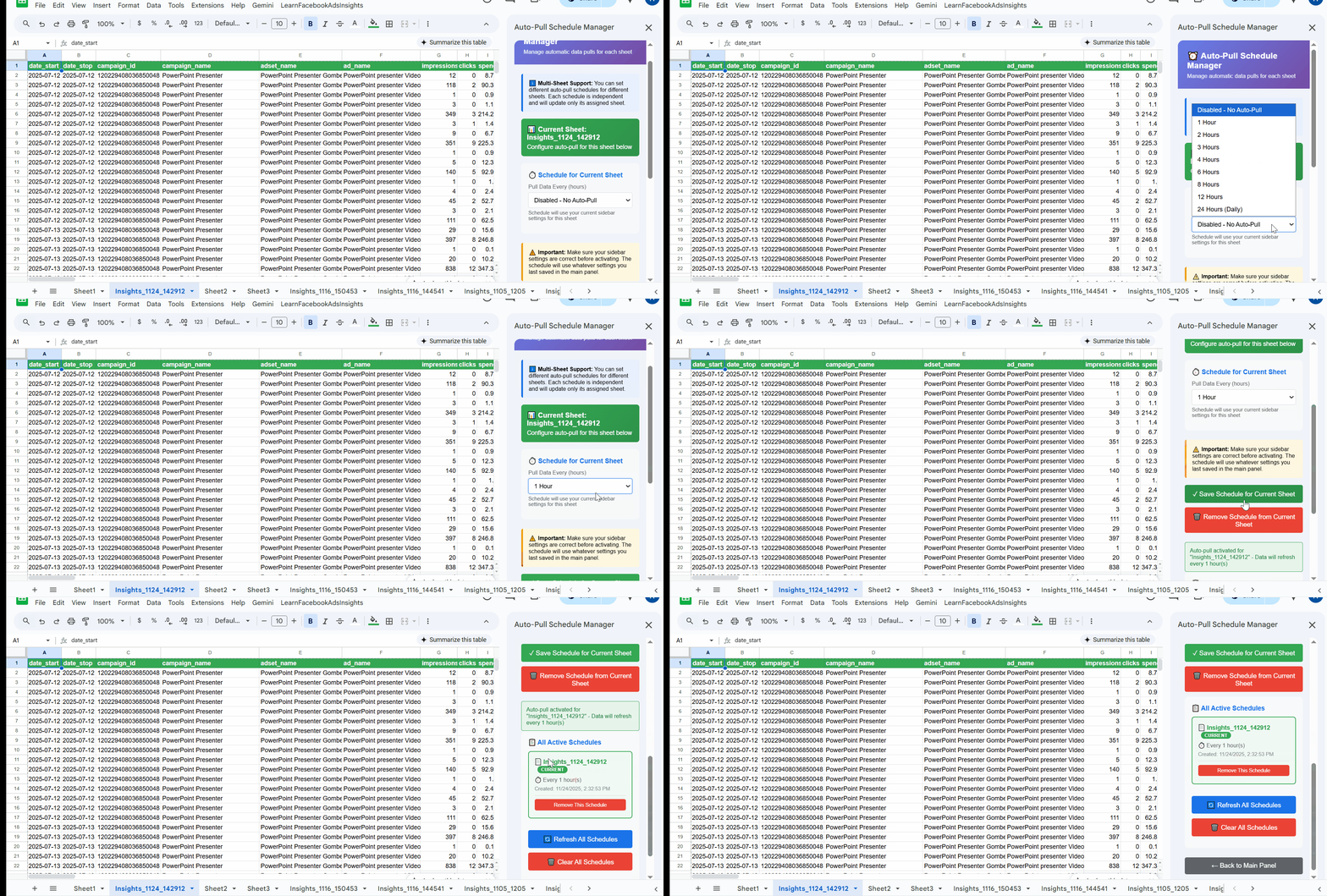
With this, you can set up multiple schedules on multiple sheets without having to go to the Ads Manager.
Add AI Analysis to Your Data
With the AI Chat assistant, you don’t need to have a dashboard. You can ask it for various questions regarding your data and even ask it to perform basic to advanced data analysis tasks like correlation and regression, statistical tests, and also plot generation.
Go to the extension menu and click on the AI Chat Assistant to open it. You can run some sample prompts on the AI Chat Assistant or give your own prompt. Here are some examples:
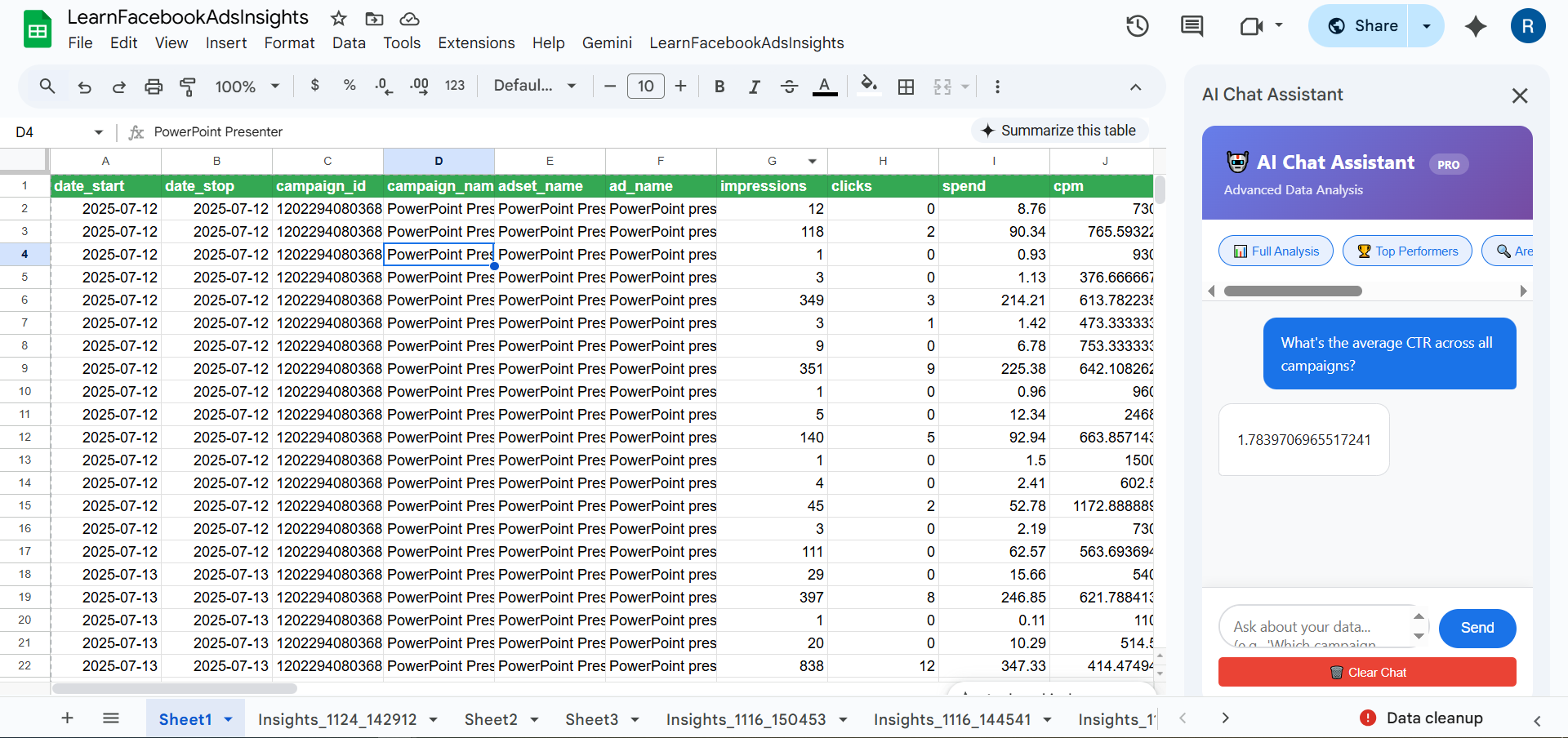
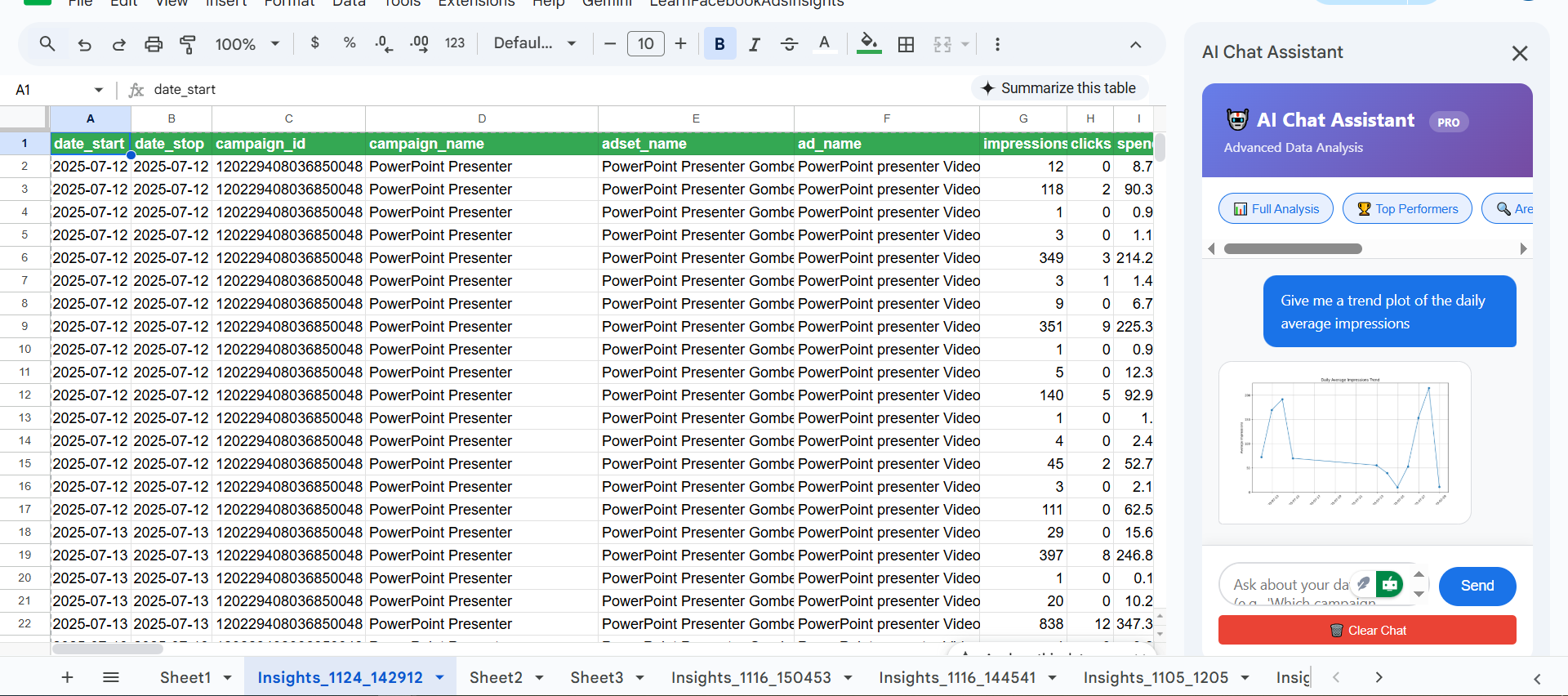
In the above example, you can right-click on the graph to open it in a new tab.
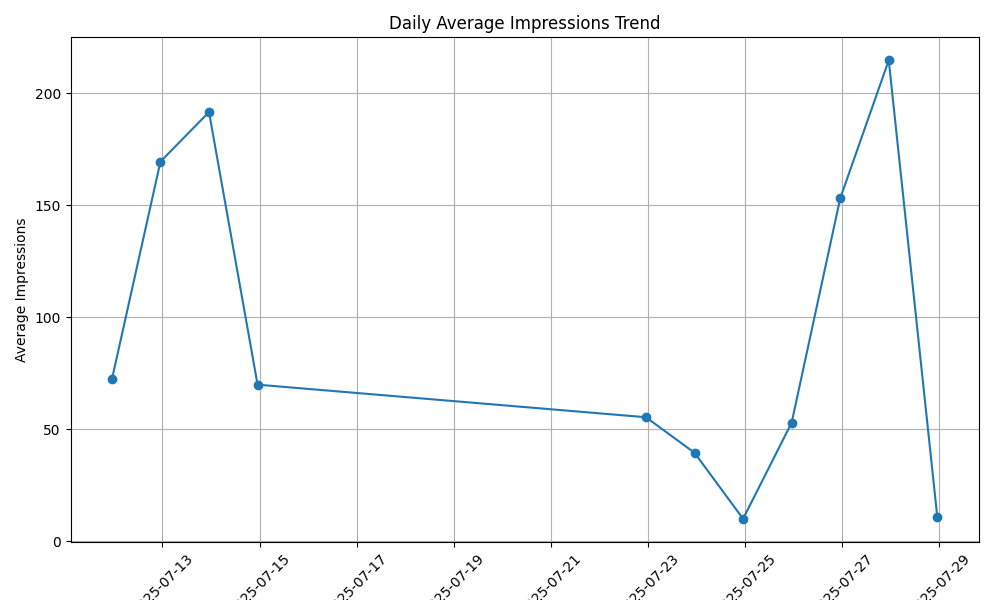
The AI Chat assistant ensures that you don’t just pull data, but you understand it.
What You Can Do Now That Reports Are Automated
Now that you have automated reports, you can build dashboards that connect to your Google Sheets file and share these files with clients or members of your organization with up-to-date data.
With the AI chat analyst, you can easily analyze your data and get a quick glimpse of information in your data. This ensures you focus on strategy instead of data grunt work.
Try It for Yourself
If you follow the steps above, I doubt that you will ever want to continue exporting CSV from the Ads Manager. You can see that it’s way more easier and simple to setup, saving you a lot of time.
It’s easy to connect with various dashboards since most BI tools already have Google Sheets connectivity, and as the data updates, your dashboard also updates with the latest information.
Also, with the AI Chat Analyst, you don’t need to write complex Excel formulas or have an in-house data analyst to make sense of the data. The AI Chat Assistant is capable of analyzing your data, and can go as far as returning summarized tables and plots of the data.